

Raise and progress a claim
A claim records a request for warranty work and its financial lines, evidence, and decision history. The claim type defines what that kind of claim permits. The vehicle supplies the asset and coverage context when the claim type requires one. Your organisation’s policy decides how the claim progresses.
The exact fields, status names, and actions depend on your organisation’s configuration and your access. This guide follows the common journey without assuming that every organisation uses the same approval process.
Create the claim
Section titled “Create the claim”- Open Claims and choose New claim.
- If both creation paths are offered, choose Manual or Template. A tenant with only one available path may open it directly.
- Select the dealership, then an allowed manual claim type or template. Template creation takes its type, configured header defaults and lines from the selected template. Choose the vehicle when the claim type requires it; vehicle-free claim types can leave it empty.
- For a manual claim, enter the mileage and repair date as required by the selected type and configuration.
- Choose Create claim. If validation refuses the request, address the displayed error before trying again.
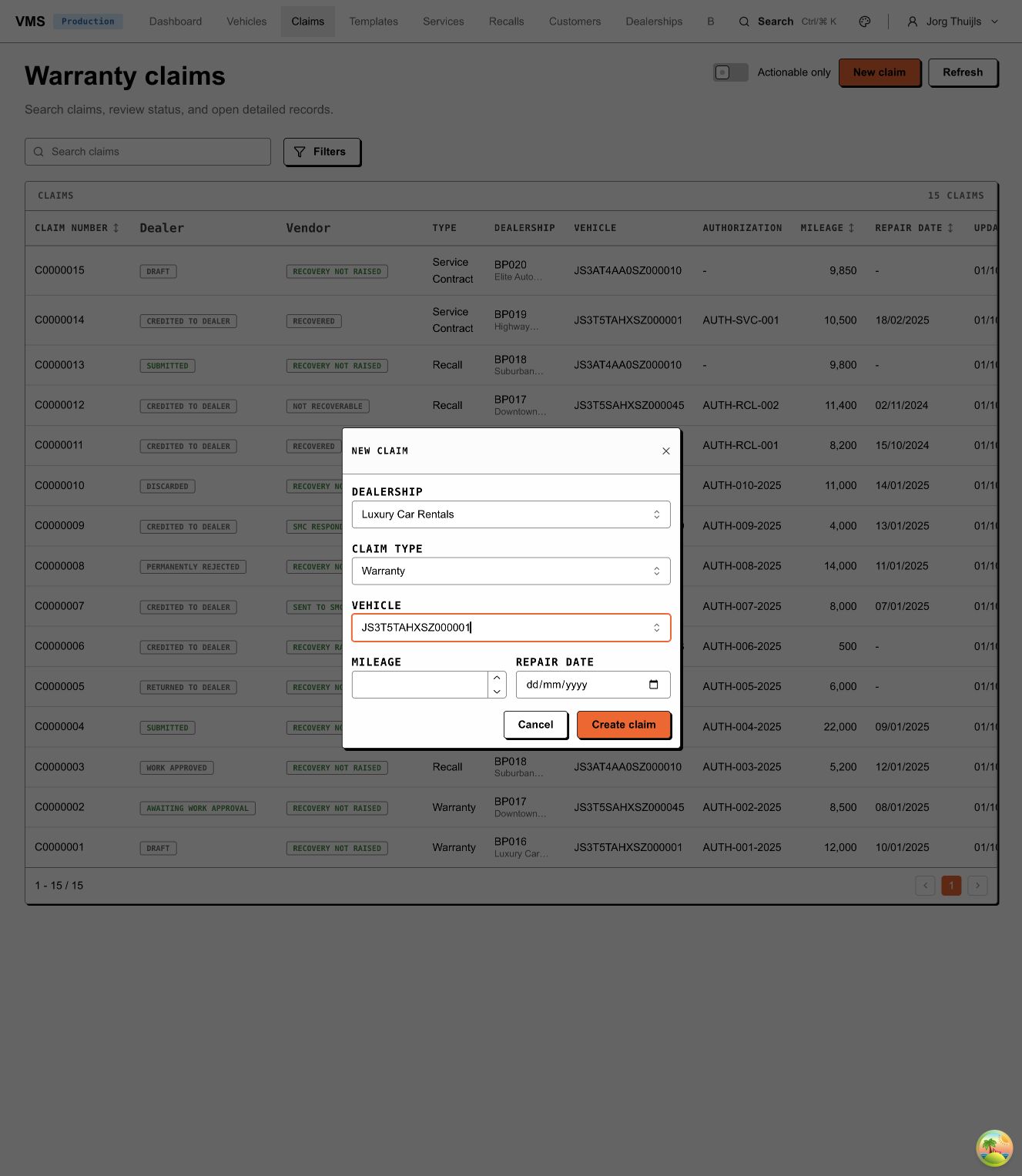
Local example: manual warranty creation after choosing a dealership and vehicle. The claim type choices depend on the dealership and access. Mileage and repair date still need to be completed in this example; the dialogue was cancelled.
Cancelling the creation dialogue does not save a claim draft. Creating the claim assigns its permanent number and opens the claim record. You can continue adding information there as the current status and your permissions allow.
Recall campaign claims begin from the relevant recall rather than this manual path. See Vehicles, warranties and recalls.
Complete the record
Section titled “Complete the record”On the claim page, check the vehicle and repair details, then add the information required for the case: claim lines, custom fields, notes, attachments, and partners. Use the discussion to coordinate work on that record.
The claim type controls whether you can add parts or labour, change quantities, or change values. A template may further restrict those choices. External pricing can come from a connected catalogue; a local price and a manual price follow different configuration. See Claims and claim types.
A value displayed as text may be intentionally read-only. Your role, dealership, the current status, and the claim type all participate in access decisions. Some fields may be hidden entirely. See Access and field control.
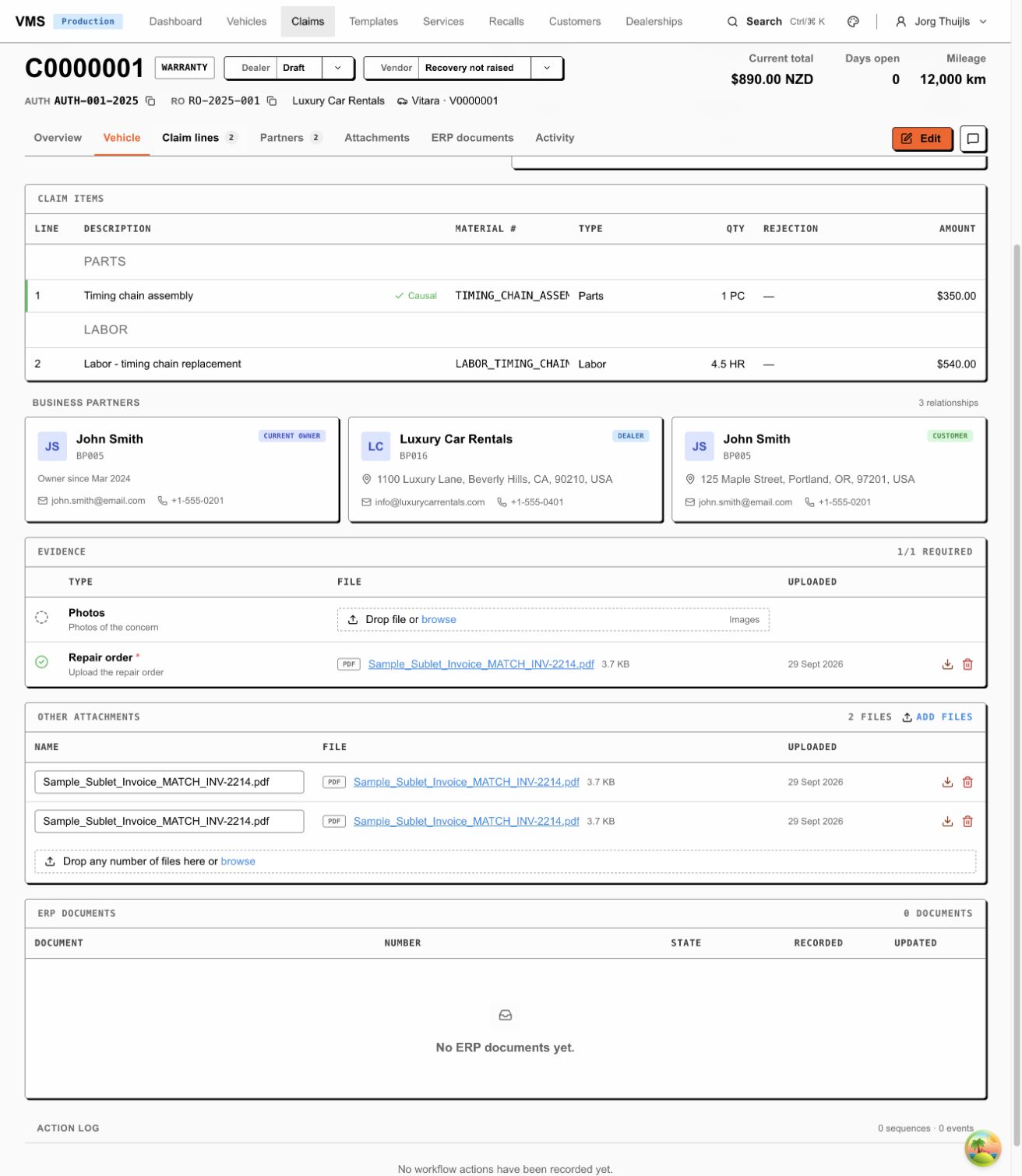
This existing claim has separate dealer and vendor tracks. Its parts, labour and evidence belong to the case; they are separate from the vehicle’s coverage.
Run the next lifecycle action
Section titled “Run the next lifecycle action”Use an available action on the claim’s workflow status or track. Your organisation may call it Submit, Review, Request information, or something else; the configured policy supplies the actual choices.
An action can start a sequence of checks, calculations, or calls to connected systems. While it runs, the claim may show processing and temporarily refuse edits. Wait for the run to finish, then inspect its result before starting another action.
flowchart TD
  C["Create claim"] --> E["Complete details and evidence"]
  E --> A["Run an available lifecycle action"]
  A --> P["Policy evaluates the sequence result"]
  P --> S["Status changes or is preserved"]
  S --> R["Review the result and next available action"]
Completing an action does not always advance a status. A check can complete and conclude that information is missing; the policy may keep the current status or route to a different one. Claims can also carry several workflow tracks, so check which track’s action and status you are looking at. See How lifecycles work.
Follow the result
Section titled “Follow the result”Review the claim’s workflow and activity history to see what ran and what it reported. Use that result to decide whether to supply more evidence, correct information, or take the next available action.
If the expected action is absent, check your role and the current workflow context with your administrator. If a run reports an execution error or remains processing, give support the claim number, action, time, and visible message. Avoid repeating an action that sends data to another system until its result is understood.
Approval, payment, and closure follow your organisation’s configured lifecycle; creating a claim alone does not complete those decisions. The record and its audit history remain the place to follow the case.
Source review: 1 October 2026, based on ClaimsPage, ClaimDetailPage, claim
creation/update routers and workflow services. The local snz tenant’s intake
dialogue, existing claim, lines, evidence and role-dependent action messages were
inspected on that date. Its intake screen includes local working-copy changes.
No claim was created or action executed; configured fields and actions vary by
tenant.