

Screens and navigation
The tenant’s top navigation connects the main working areas. Some entries appear only when your role has permission to use them.
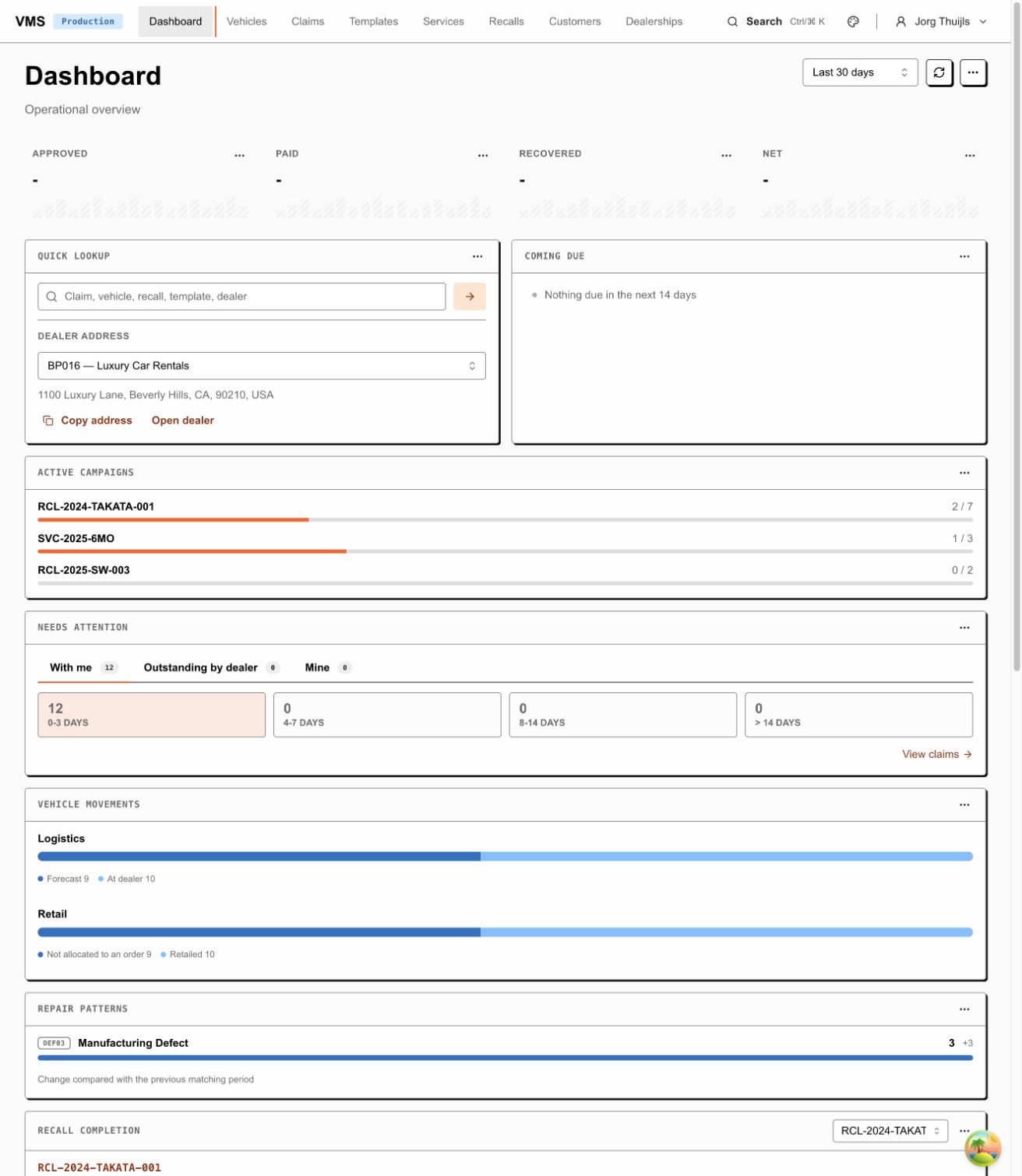
Local example: the dashboard combines shortcuts and operational summaries. Your visible areas and widgets depend on access and configuration.
| Screen | Use it for |
|---|---|
| Dashboard | Follow visible queues, recent work and vehicle or claim summaries |
| Vehicles | Search for a vehicle and open its record |
| Claims | Find existing claims or choose New claim |
| Templates | Inspect or maintain reusable claim defaults and lines |
| Services | Inspect or maintain service definitions |
| Recalls | Inspect campaigns, their vehicles and associated claims |
| Customers | Work with the customer records your role can access |
| Dealerships | Find dealer information and permitted user administration |
| Budgets | OEM allocation, dealer distribution or refinement, according to access |
| Settings | Tenant configuration, reference data, UI Access and integrations |
Use the search control in the header for lookup. In list screens, combine search and the available filters to narrow the records. If a list looks empty, clear filters first and check that you are in the intended tenant. A visible list is still limited by your access.
Inside a record
Section titled “Inside a record”Open the identifier link or row to reach its detail page. The section links in the record header help you reach details, lines, evidence and history. A vehicle can also link to its claims, service records and recalls.
Choose Edit where it is offered, change the permitted inputs, then save. Some values stay as text because they are read-only. Fields or whole sections may be hidden. A processing record can temporarily refuse edits while a lifecycle action runs.
A record may have several workflow tracks. Read the track label with its status and action; one status alone does not describe every part of the process.
Administration
Section titled “Administration”Use Settings → Users & Roles or Dealerships for invitations and role assignments. Authentication identity is shared within a provider environment, but workspace membership, dealership scope and local roles remain specific to Fleetlane. WorkOS sends authentication emails; integration and product mail settings do not control them. See sign-in and workspace access.
Tenant Settings controls that organisation’s business configuration. The central management portal at the central address is for operators managing tenants; it has separate access. Use the address provided for the work you need.
Source review: 1 October 2026, based on tenant routes, TopNav, ClaimsPage,
VehicleDetailPage and ClaimDetailPage. The navigation and selected record
screens were also inspected in the local snz tenant on that date. This does not
verify every role or dashboard widget calculation.