

Work with recalls
Dealer work on a vehicle
Section titled “Dealer work on a vehicle”- Open the vehicle and inspect Recalls.
- Read the campaign code, description and any existing claim link.
- If a claim is linked, open it to continue the recorded work.
- If Create claim is offered, choose it. Fleetlane creates the claim from the campaign’s template and opens the new record.
- Verify the copied details and lines, add permitted evidence, and use the claim’s available lifecycle actions to progress the case.
A campaign’s end date describes its administrative window. An ended campaign can still appear as an outstanding obligation for the vehicle. Do not treat that date alone as proof the recall work is complete.
Administrator work on a campaign
Section titled “Administrator work on a campaign”Open Recalls, select the campaign and inspect its template, dates, vehicles and linked claims. Users with campaign permissions can maintain the campaign and affected vehicle list. Claim creation on the campaign page can create the required records for eligible vehicles and reports created and skipped counts. Review those results and inspect individual claims for their decisions.
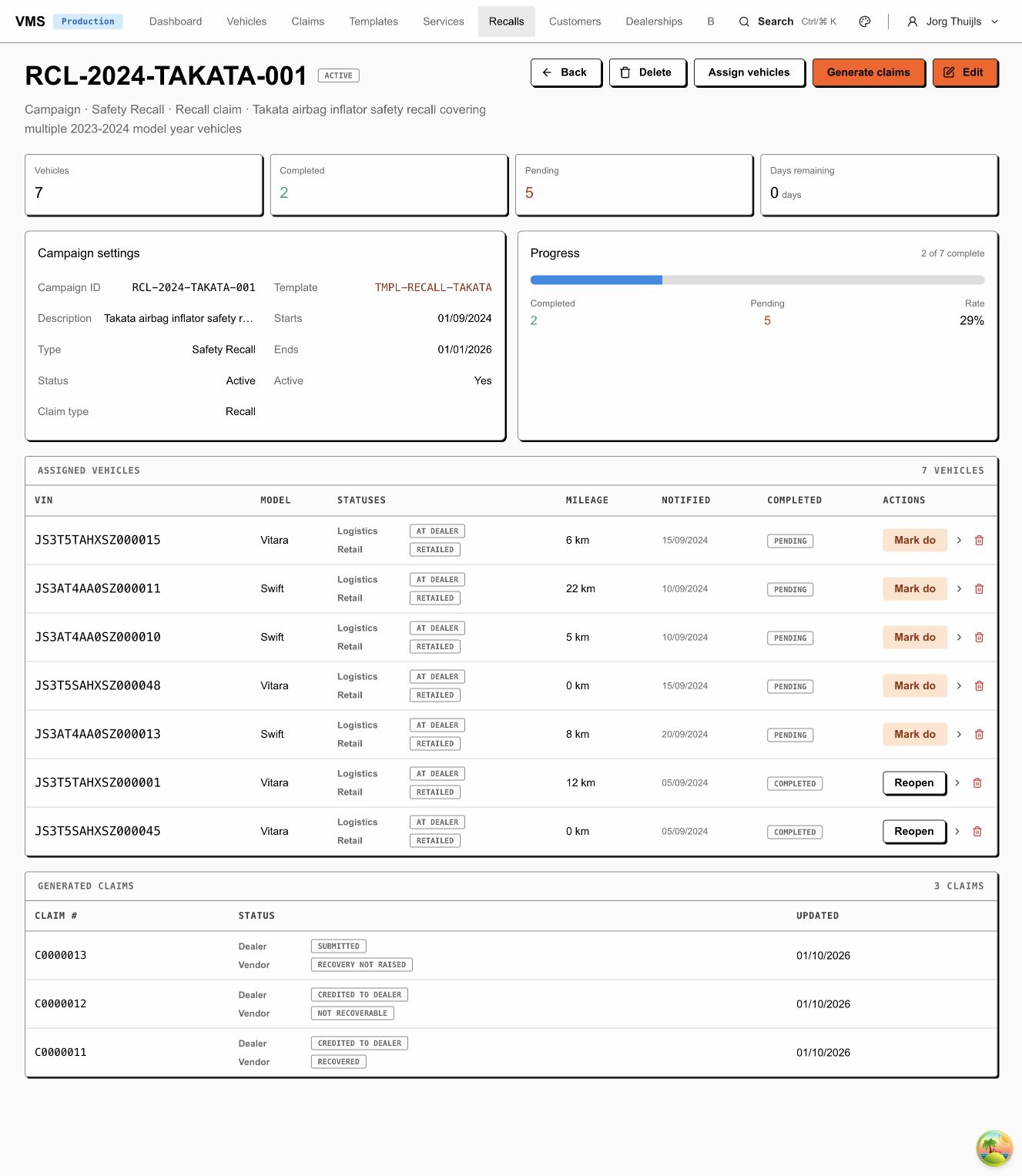
The campaign brings together its template, assigned vehicles and generated claims. Read campaign progress separately from each claim’s workflow tracks.
Campaign claim creation records work to be done; approval and payment still happen on the full claim through its configured lifecycle. A batch creation result does not approve the records it created.
See Vehicles, warranties and recalls for campaign structure and completion behavior.
Source review: 1 October 2026, based on VehicleRecallsSection,
RecallCampaignDetailPage, campaigns and vehicleRecalls. The campaign,
assigned vehicles and existing claim links were inspected in the local snz
tenant on that date. No vehicles were assigned, completion changed or claims
generated during this review.